How to make a school timetable with ChatGPT
Free. Best done on a computer – that is where your school files are. Reading this on your phone? Send this page to yourself and try it when you are at your desk.
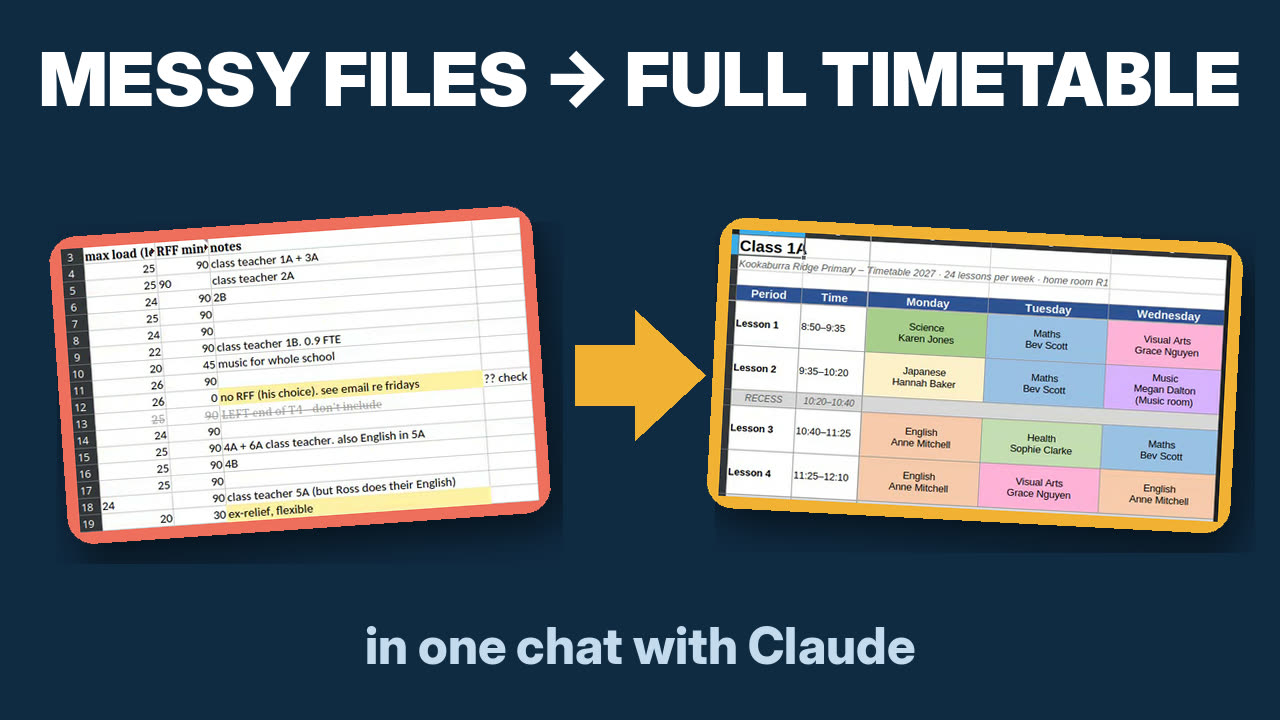
Watch the full demo (3½ min) – from messy
staff lists to a finished timetable, a real run with a fictional school. Recorded in Claude; ChatGPT works the same way.
Why ChatGPT alone is not enough
If you simply ask ChatGPT (or any other AI chatbot) to "make a school timetable", it will write one, but it cannot check it. With 10 classes, 15 teachers, shared rooms and part-time staff, the result almost always has hidden clashes: a teacher in two rooms at once, or a class with too few maths lessons. A timetable is a puzzle that has to be calculated, not written.
School Timetable Builder is a free app for ChatGPT and Claude that solves this. ChatGPT does what it is good at (reading your files and asking you questions), and our timetabling engine does the calculation. Every rule you give is a firm rule: either the timetable meets all of them, or you get a plain explanation of what clashes.
What you need
- A ChatGPT account. The app also works on the free plan (see the tip about files in step 3).
- Whatever you already have about next year: staff list, subject hours per grade, bell times, room list, notes from the principal. Messy spreadsheets and Word files are fine (on the free plan, see step 3).
Before you upload: use initials or staff codes
We recommend replacing teachers' names with initials or your school's staff codes (for example "MW" or "T07") in your files before you upload them. Then neither ChatGPT nor our service ever sees real names, and the timetable comes back with the same initials or codes. Keep your own list of who is who.
This is a must if your school does not allow personal information in AI tools. Pupils' names and other pupil details are never needed – leave them out.
Tip: in ChatGPT you can turn off Settings → Data controls → Improve the model for everyone.
Step 1: Add the app to ChatGPT
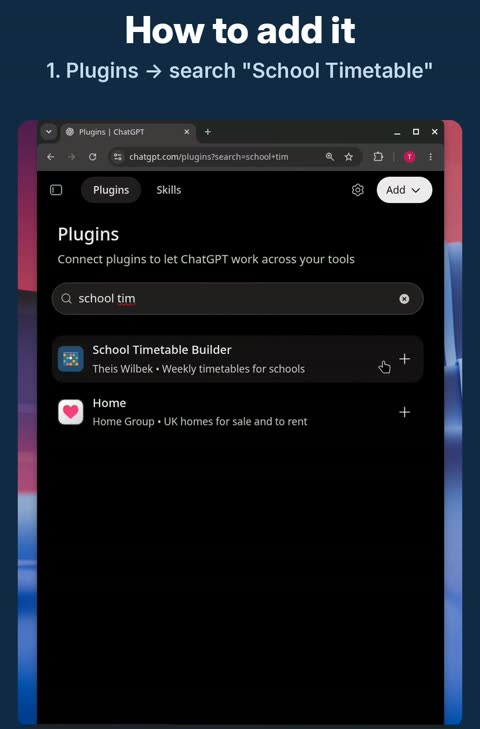
In ChatGPT, open Plugins and search for "School Timetable". Or go straight to School Timetable Builder in ChatGPT.
Step 2: Click Connect
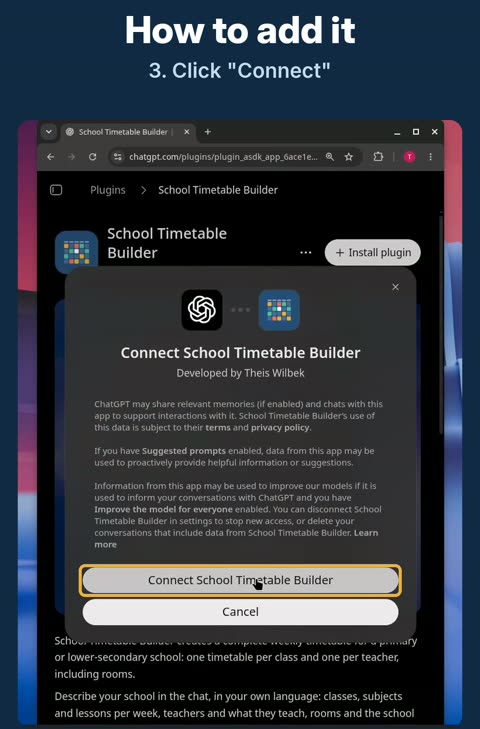
Click Install plugin and then Connect. No account or login is needed.
Step 3: Choose the app and add your files in a new chat
Start a new chat. Click + below the message box (on some screens under More) and choose School Timetable Builder. Its name now shows in the message box. You can also type @School Timetable Builder.
Then attach your files and write something like "Use School Timetable Builder to make next year's timetable for our school". You can write in your own language.
If you skip choosing the app, ChatGPT may try to write the timetable itself – without our engine and without checking for clashes.
On the free ChatGPT plan: only a few files a day
The free plan only lets you attach a few files a day. Put everything in one document instead: copy the staff list, subject hours, bell times and notes into one Word file. Or paste the text straight into the chat. On a paid plan you can attach your files as they are.
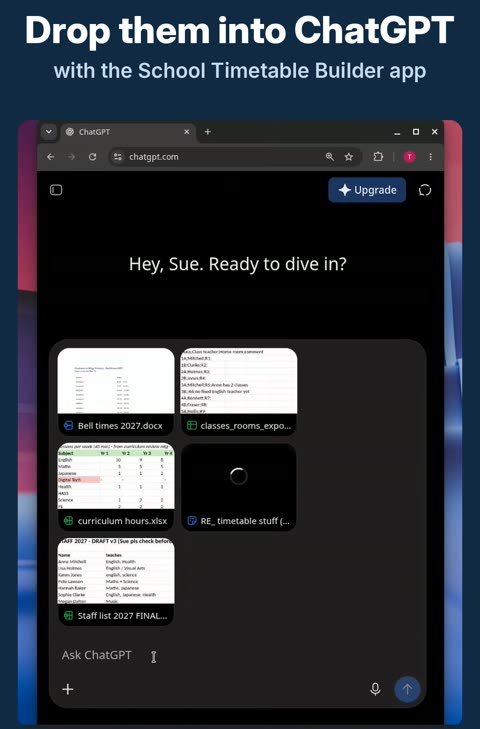
On the free plan, use one document instead of the 5 files in the screenshot.
Want to try first without your own data? Download our sample school (one Word document, made-up names) and use that.
Step 4: Answer the questions
ChatGPT reads every file, sums up what it found and only asks about what it cannot work out itself, one topic at a time. Typical questions: Which teacher covers this subject? Does a blank cell mean "not taught"? Is a teacher unavailable on certain days?
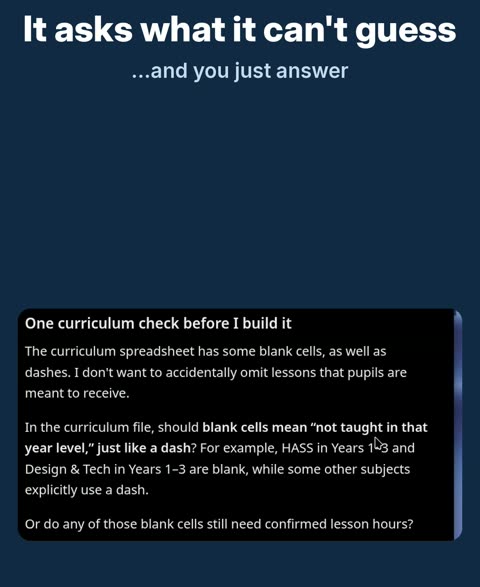
If a name slipped through, it is no disaster: before anything is sent to our service, ChatGPT replaces every teacher with a neutral code (T01, T02, …), so our service never sees who your teachers are. ChatGPT then checks your data for free and tells you if, for example, a teacher has more lessons than available time.
Step 5: Say go, and wait 5–8 minutes
When the data is complete, ChatGPT asks if it should start. Answer yes. The engine calculates the whole timetable, usually in 5–8 minutes.
Step 6: Download your timetable
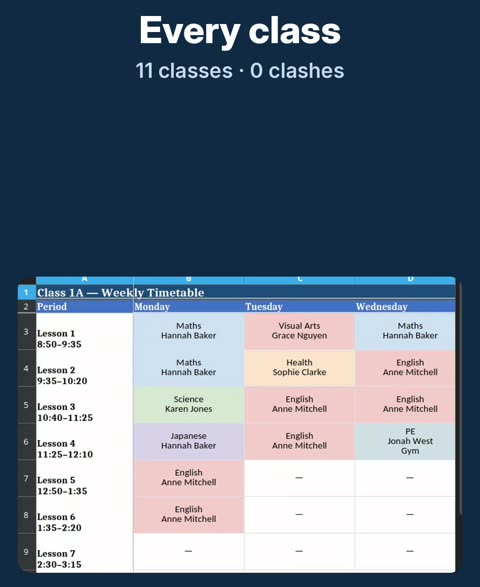
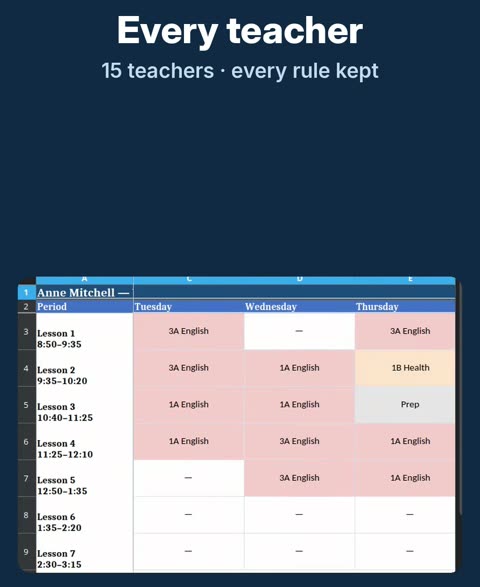
You get a spreadsheet with one sheet per class and one per teacher, with the names, initials or codes you used put back in.
Step 7: Save the School data file
You also get a "School data" file with everything that was used. Save it. Next time, or when something changes, attach it in a new chat and say what is different, for example "Mrs Hansen now teaches 2 fewer lessons".
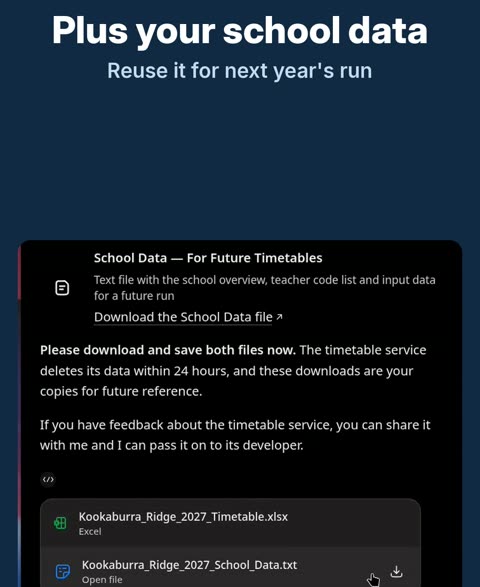
Download both files straight away. Our service keeps nothing for more than 24 hours.
Watch the whole thing
The 45-second video in ChatGPT shows how it works, and the 3½-minute video goes through them in detail (recorded in Claude).
Using Claude instead?
It works the same way. In Claude, open Customize → Connectors, search for "School Timetable Builder" and click Connect. See the Claude guide.
What the engine can and cannot do
It handles 5- or 6-day weeks with 1–12 lessons a day, teacher availability (e.g. "not after lesson 4 on Fridays"), workload and part-time, planning time with no gaps, double lessons, daily limits per subject (e.g. English once a day), fixed teachers, shared rooms, classes taught at the same time and groups inside a class with their own teacher (e.g. CRE and IRE). It does not handle "if possible" wishes weighed against each other, whole-day events or student-choice courses. Full list.